 Lightweight
How to move from Hevy to Lightweight
This guide shows how to bring your whole workout history from Hevy into Lightweight, a free gym log for iPhone and Android with no ads, no account, and no internet needed. Hevy can export your workouts as a CSV file, and Lightweight reads that file directly, so every set you've logged comes with you.
Lightweight isn't in the stores yet, it's coming soon to the App Store and Google Play. The steps below describe the app as it's built now, and I'll update this page if anything changes before release.
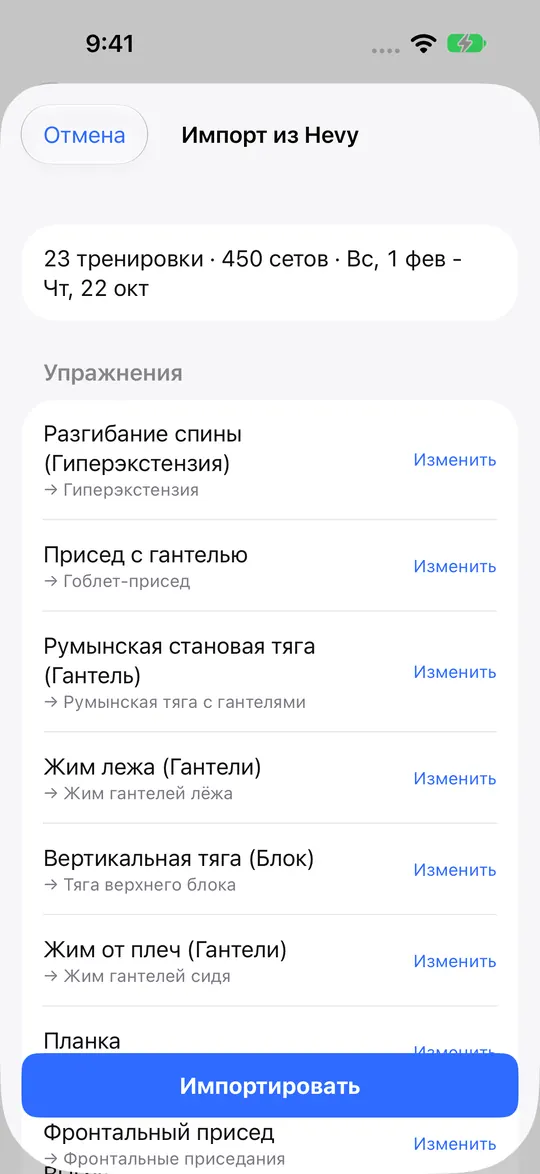
Import from Hevy, step by step
-
Export your workouts from Hevy
In Hevy, open Profile → Settings → Export & Import Data → Export Workouts. Hevy creates one CSV file with all your workouts. Save it where you can find it on the phone that has Lightweight, for example in Files on iPhone or in Downloads on Android. If you exported on a different device, just send the file to yourself.
Exporting only makes a copy, so nothing is deleted from Hevy.
-
Open the import screen in Lightweight
Tap the gear at the top of the Workout tab to open Settings, scroll to Data and tap Import from another app, then pick Hevy at the top of the list. On iPhone there's also a direct Import from Hevy row in the same section. Then choose the CSV file.
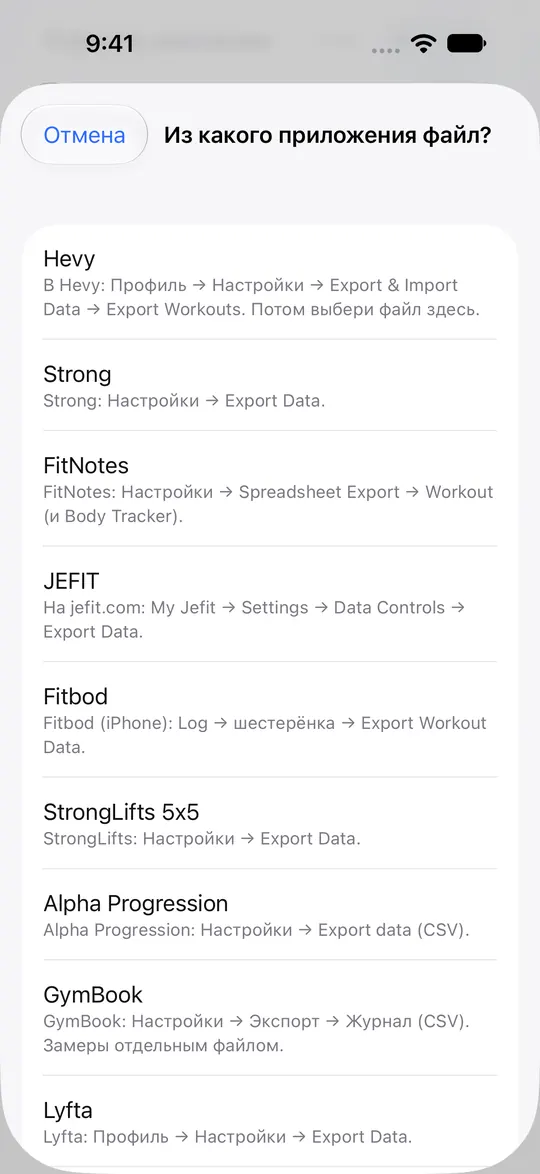
The list of apps you can import from, with a note under each on where its export lives (Russian interface). -
Check the preview
Nothing is saved yet at this point. Lightweight shows how many workouts and sets are in the file and the date range, then every exercise name from Hevy next to the Lightweight exercise it maps to. Tap any row to pick a different exercise or to create it as your own custom exercise. Exercises that don't match anything become custom exercises, so nothing gets lost.
-
Tap Import
The import is saved in one go. When it's done, you see how many workouts were imported and how many were skipped because they were already there. Your history, charts and records update right away.
What comes over from Hevy
- Every workout with its name, date, start and end time, and notes.
- The exercises in each workout, in order, with their notes.
- Every set with weight and reps, or duration for timed exercises.
- Warm-up, failure and drop sets, and supersets.
- RPE, if you logged it.
- Kilograms or pounds, whichever your export uses. You can switch the unit in Lightweight later at any time.
Hevy writes dates in the language of the phone that made the export, and Lightweight reads both English and Russian dates and exercise names.
What doesn't
The import brings over your workout history. Your routines you set up once in Lightweight's Programs tab, and body measurements aren't part of the Hevy import. Distance for cardio exercises isn't imported either.
Importing again later is safe
If you keep using Hevy for a while, you can export again and import the new file. Workouts that are already in Lightweight, with the same start time and name, are skipped, so nothing doubles up.
Moving from Strong, FitNotes or another app
The same import screen reads exports from nine more apps. This is where each app keeps its export:
- Strong: Settings → Export Data.
- FitNotes: Settings → Spreadsheet Export → Workout (and Body Tracker for body measurements).
- JEFIT: on jefit.com, My Jefit → Settings → Data Controls → Export Data.
- Fitbod (iPhone): Log → gear → Export Workout Data.
- StrongLifts 5x5: Settings → Export Data.
- Alpha Progression: Settings → Export data (CSV).
- GymBook: Settings → Export → Logs (CSV). Measurements are a separate file.
- Lyfta: Profile → Settings → Export Data.
- Setgraph: Settings → Account → Export Set Data.
If a file doesn't say whether weights are in kilograms or pounds, the preview asks you before importing.
And if you ever want to leave Lightweight
Settings → Data → Export CSV writes your whole history with the same columns as Hevy's export, one row per set. Your data is a file on your phone, not an account on someone's server, so you can always take it with you.
Coming soon to the App Store and Google Play